I got tired of Mac’s built-in dictation dying every time I switched windows. QAI Voice is a free Mac menu-bar app I built so I can talk a bug out and have the text land in whichever field I’m in.
Mac dictation didn’t survive my setup
I bounce between terminals, VS Code, the browser, Jira, Slack, TestRail, and whatever else is open. Native dictation was intermittent and slow to register. The part that actually killed it was focus. The moment I clicked another app, recording stopped. Other dictation apps did the same thing.
The other annoying part is that native dictation doesn’t keep what you said. If it didn’t register, there is nothing to copy. The words are gone.
When Apple native dictation doesn’t activate, it’s annoying. I have to Command-Tab back and forth for it to register. It happens on certain apps.
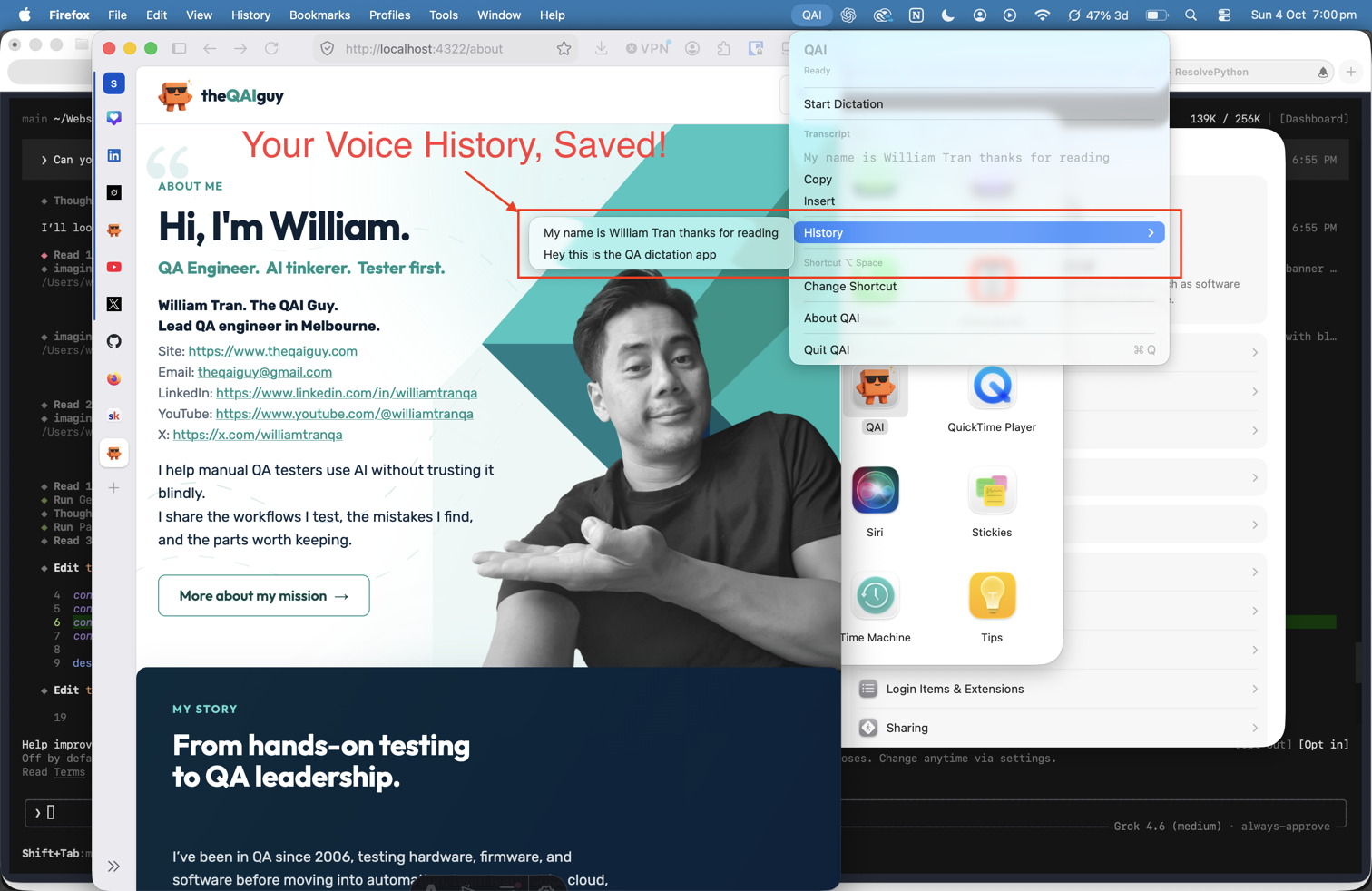
With QAI Voice, a session transcript sits in the menu. I can copy from the history if I need to.
QA words came out wrong too. I’d say Playwright and it would land as two words. Other terms did the same.
I wanted something I could leave on, hop between apps, keep talking, and not lose the thought. I also didn’t want those recordings going into Grok, Claude, or ChatGPT. Internal tickets stay on this machine.
I also tried Superwhisper. I didn’t like it much.
Wispr Flow and a few other third-party apps were fine until they weren’t. They limited how much I could say, then asked me to pay to keep talking.
That’s why QAI Voice sits in the menu bar. Option+Space, speak, pause, and the chunk pastes at the cursor. Click another window and keep going.
The job
You already hop. Repro in the browser. Write-up in Jira. Ping in Slack. Note in TestRail. Typing every repro with a laptop on the other desk is the slow part.
QAI Voice stays in the corner. You toggle dictation, not the app. Paste goes into whichever field is focused, so you can switch windows mid-session and the next chunk hits the new field.
If those notes still turn into essay-length tickets, I already wrote Stop Writing Bug Reports Like Essays.
How it works
- Open QAI Voice. It sits in the menu bar, no Dock icon.
- Press Option+Space (or Start Dictation).
- Talk. When you pause, that chunk is transcribed and pasted.
- Click Slack, Notes, VS Code, Mail, the browser, and keep talking.
- Option+Space again ends the session.
Change the shortcut in the menu if you want. It is remembered on this Mac. Session transcript history is in that same menu, so you can copy a chunk that didn’t paste.
Why I keep it running
It’s a native Mac app, 1.7 MB. No Electron. No account.
Transcription uses Apple Speech on this machine. Audio and transcripts stay on the Mac. Nothing phones home. No analytics. The source is public, so you can check.
It also has predefined terms for QA and AI, so words like Playwright have a better shot of coming through as one word.
Install
Needs macOS 26 (Apple silicon and Intel).
- Download
QAI.zipand unzip it. - Move
QAI.appto/Applications. - If the zip came from a browser, AirDrop, Messages, or Mail, clear quarantine first:
xattr -cr /Applications/QAI.app- Open QAI Voice. Grant Microphone, Speech Recognition, and Accessibility.
Quit any older QAI Voice first. Accessibility is tied to this signature. Grant it again after you replace the app. If paste fails, toggle QAI Voice off and on in System Settings → Privacy & Security → Accessibility.
The 1.0 build is ad-hoc signed (Sign to Run Locally). That is why the xattr step exists.
Privacy
Transcription is forced on-device. Recordings live in a temp folder on that Mac. Spoken text is not uploaded. No crash reporter, no telemetry, no account.
You can read the recognizer setup in SpeechTranscriptionService.swift.
What’s in 1.0
- Continuous dictation as the only mode
- Pause-based insertion while you keep talking
- On-device Apple Speech
- Predefined terms for QA and AI
- Recording overlay, session transcript history, configurable hotkey
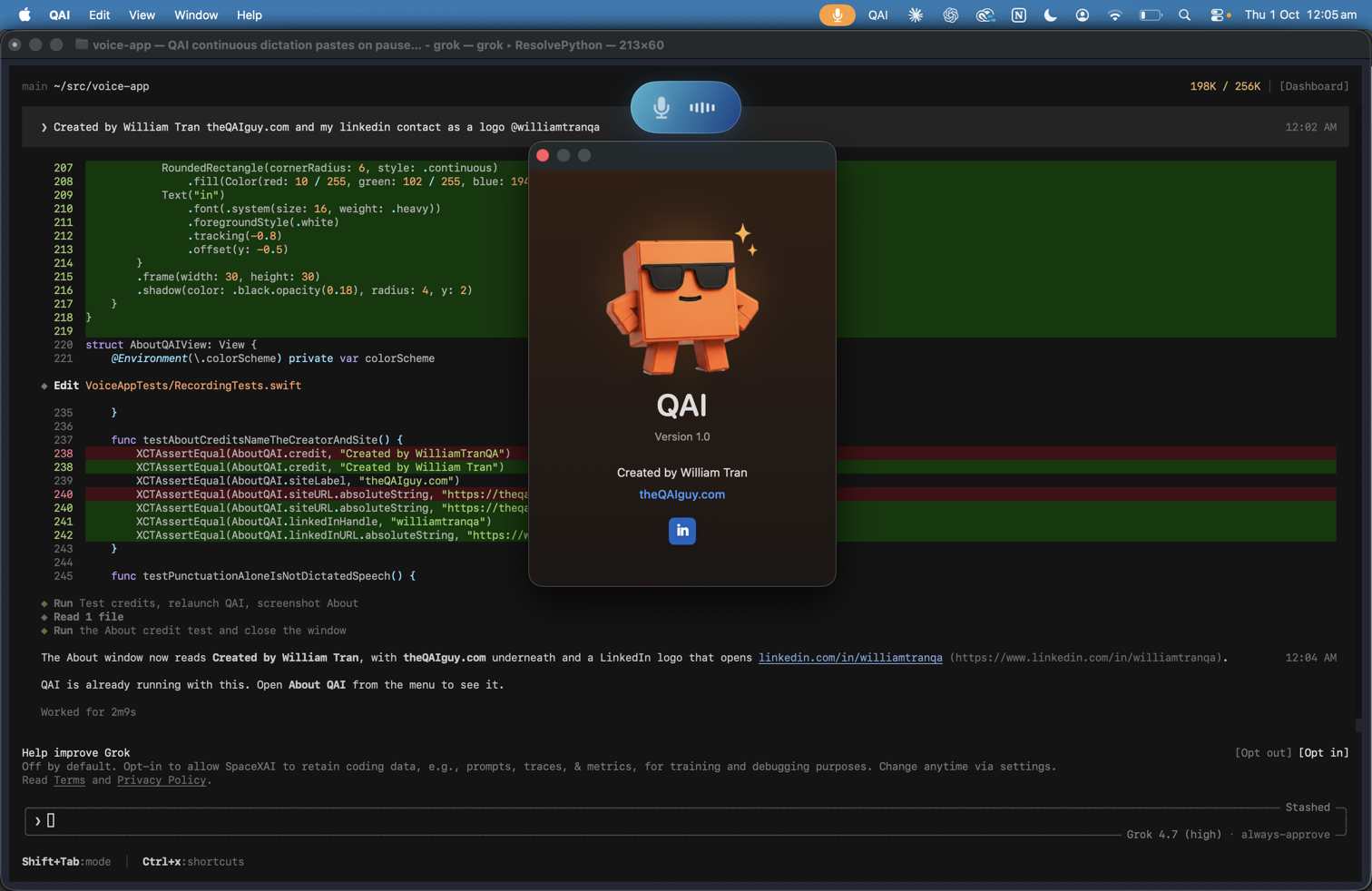
- About QAI Voice
Comments
Loading comments…
Leave a comment